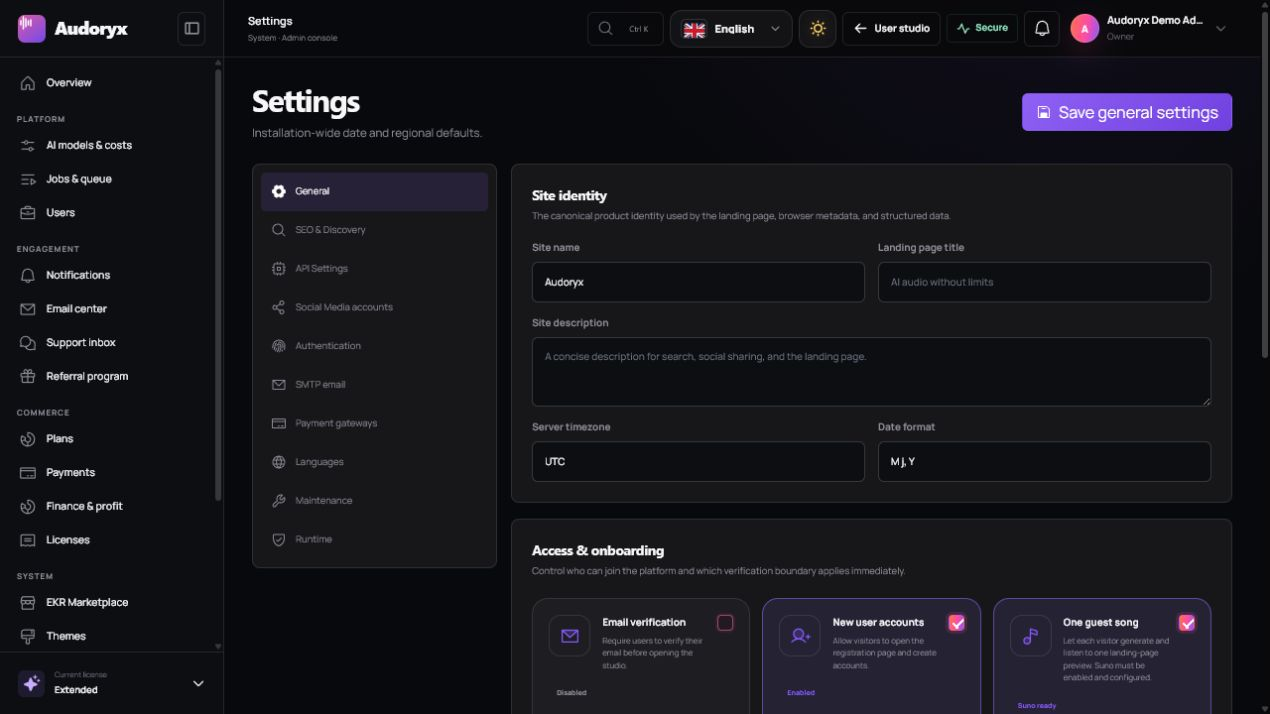
Configure the platform before opening it.
Establish identity, authentication, delivery, discovery, language, storage, and recovery boundaries before creators or payments enter the system.
General settings
Open Admin → Settings → General. Set installation-wide values deliberately; they influence emails, metadata, legal timestamps, localization, and public URLs.
Brand and content
Open Admin → Brand & content. Content is divided into focused workspaces so a logo replacement cannot accidentally overwrite landing copy or legal documents.
Brand identity
Upload approved full logos, a compact navigation mark, browser icon, and light/dark variants. Confirm each crop at the size shown in the preview.
Authentication pages
Edit login and registration copy separately. Images may act as video posters; uploaded videos autoplay silently, loop, and play inline.
Landing content
Select the target frontend theme before editing its hero, sections, lists, labels, trusted logos, artwork, and calls to action.
Legal documents
Publish accurate privacy, terms, and company content. Template text is not a substitute for advice appropriate to your jurisdiction and business.
Switching the active theme resolves that theme's saved copy and media. A package update preserves administrator-managed content.
Authentication and abuse protection
Open Admin → Settings → Authentication. Only enable a provider after its redirect URL, secret, allowed origin, and privacy disclosure are correct.
- Social sign-in credentials are accepted as write-only secrets.
- Use the exact callback URL displayed by Audoryx in the provider console.
- Choose one supported captcha boundary and verify it on login, registration, or recovery surfaces where configured.
- Keep password recovery and verification email delivery functional before enforcing verification.
- Two-factor authentication is user-controlled when its licensed capability is available.
- Never use a shared administrator account in production.
SMTP email
Enter the mail transport
Use the host, port, encryption mode, username, password, sender address, and sender name supplied by your mail provider.
Save before testing
Secrets are encrypted at rest and are not returned to the browser. Leave an existing secret field blank to retain its saved value.
Send a real test
Deliver to an address outside your domain when possible. Check delivery, sender identity, SPF, DKIM, DMARC, reply handling, and spam placement.
Run notification workers
Email campaigns and asynchronous notifications require their queues. A successful connection does not prove a stopped queue can deliver.
SEO and social profiles
Open Admin → Settings → SEO & Discovery and Social Media accounts.
- Use a unique site title and a truthful concise description.
- Set the canonical HTTPS origin and do not index a staging or demo domain accidentally.
- Review
/robots.txtand/sitemap.xmlafter saving. - Add verification files or tokens only from the intended search service.
- Use social URLs owned by the operator and remove empty profiles.
- Verify public artwork and metadata in both light and dark modes.
Languages and RTL
The Languages workspace manages availability, the default locale, import, translation strings, and optional licensed automatic translation.
| Action | Recommended verification |
|---|---|
| Add/import a language | Use a valid locale and native name, then review every imported string before enabling it. |
| Edit translations | Test long labels, plural meaning, placeholders, variables, email content, and validation messages. |
| Make default | Check public pages, login, registration, studio, administration, email, and SEO URLs. |
| Enable RTL | Inspect navigation, icons, media controls, tables, forms, player direction, and mixed Latin/Arabic text. |
Storage and private media
Customer audio belongs on a private disk. Artwork, avatars, logos, and intentionally public images may use Laravel's public disk.
AUDORYX_MEDIA_DISK=local- Do not point
AUDORYX_MEDIA_DISKat the public disk. - Use authorized streaming/download routes rather than direct storage URLs.
- Back up both the database and media store.
- For object storage, configure private access, lifecycle policy, versioning, and recovery independently.
Maintenance and error pages
Open Admin → Settings → Maintenance. This section controls both the public maintenance experience and protected operational tools.
Public maintenance
Enable or disable the forced page, customize the message, upload an approved PNG, and preview the active theme before saving.
Error previews
Preview 404 and 500 states using the same active theme. Do not include exception text, stack traces, paths, credentials, or internal hostnames.
Backups
Create protected archives and download them only through authenticated administrative routes. Store a copy off server.
Migrations and updates
Use the guarded interfaces only after a verified backup and while a recovery path is available.
Administrators still need secure authentication and a valid license. Network and server controls remain responsible for infrastructure maintenance.