From a prompt to a public track.
Learn the real creator workflow: choose a compatible model, understand the credit cost, listen as soon as a safe stream exists, organize the result, refine it, and publish only what you have the right to share.
Account and access
- Use a unique email, username, and password.
- Complete email verification when the installation requires it.
- Enable two-factor authentication and store recovery codes offline when available.
- Use only vocal recordings, prompts, lyrics, artwork, and media you own or are authorized to process.
- Review the operator's Terms and Privacy pages before generation or publication.
Studio overview
The persistent player remains available while moving between Home, Explore, Create, Library, workspaces, playlists, track pages, support, notifications, billing, and profile settings.
Home
Resume recent work, open configured feature cards, and enter creation or Voice to Song.
Explore
Discover public tracks, categories, sections, creators, and playlists without changing ownership.
Create
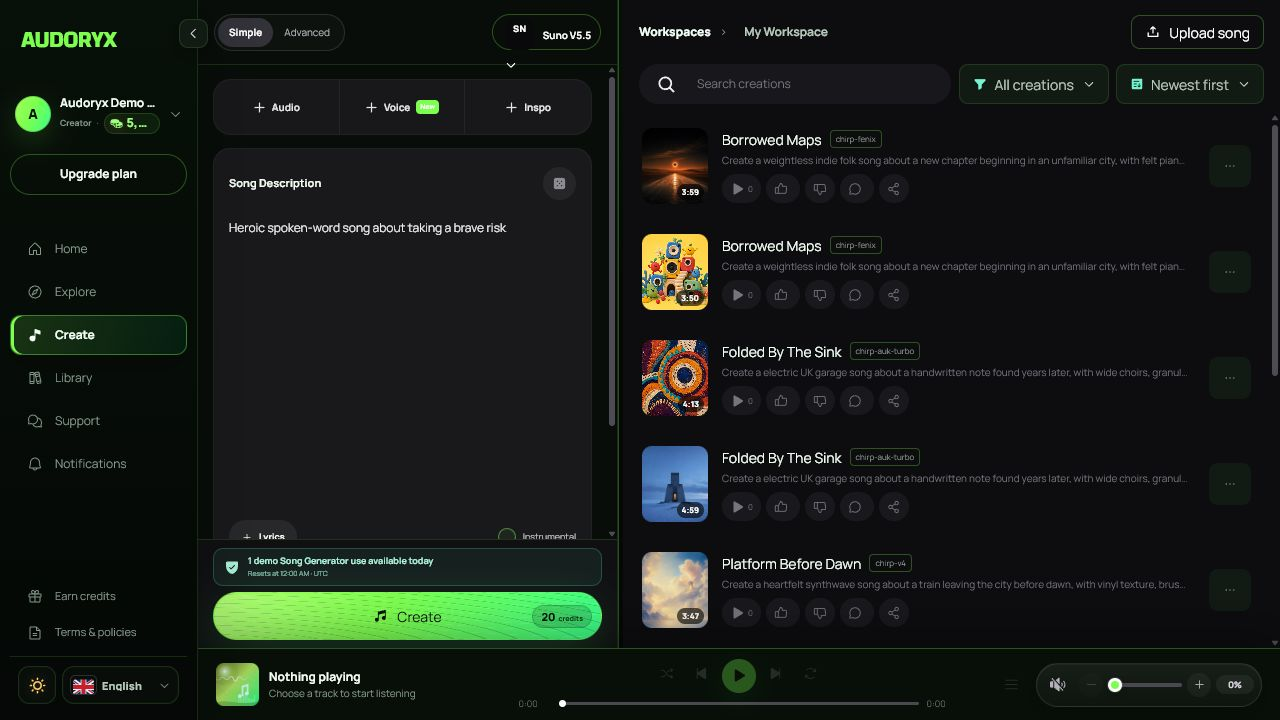
Select a provider model, write a request, choose supported controls, and monitor generation.
Library
Find creations, history, liked songs, playlists, imports, and workspace assignments.
Create a song in Simple mode
Select the model first
Model choice determines provider, price, duration, vocals, streaming, and supported controls. Review the displayed credit cost before submitting.
Write one clear description
Describe mood, genre, instrumentation, tempo, vocal direction, structure, and production character without copying protected lyrics or imitating a living artist deceptively.
Add lyrics or choose instrumental where supported
Simple mode may accept generated/custom lyric direction depending on model. Instrumental removes the vocal request; it does not guarantee a specific duration or arrangement.
Submit once
Credits are reserved idempotently. Do not double-click or refresh repeatedly to force a second paid provider request.
Follow the creation list
Early title, metadata, cover, state, and stream controls appear only when available and valid. Completed tracks expose their final actions.
Advanced Suno mode
Advanced mode and the Audio, Voice, and Inspo selectors appear only for supported Suno-compatible models.
- Selecting an incompatible non-Suno model switches to Simple mode and disables Advanced mode.
- Attempting to activate an unsupported mode shows an explanation rather than submitting invalid data.
- Selecting a Voice can require Advanced mode when the provider workflow requires it.
- Removing the Voice restores the normal compatible-mode choices.
- Use detailed lyrics, style, exclusions, instrumental state, title, and supported provider parameters only within displayed limits.
Changing to an incompatible model prevents unsupported submission. Review the form after switching back before generating.
Voice to Song
Voice to Song begins with a user-owned recording of singing, humming, melody, or another vocal performance. It asks the compatible provider to build a complete arrangement around that source. It is not written-text narration or general TTS.
- Record in a quiet environment and keep the intended melody clear.
- Upload a supported audio file that belongs to you or for which you have explicit consent.
- Wait for validation and processing; do not navigate away during an active upload.
- Describe the desired arrangement, genre, instruments, energy, and production.
- Select a compatible model and review the credit cost.
- Generate, then compare the final arrangement with the original vocal and provider rights.
Do not upload another person's voice without the authorization required by the operator, provider, and applicable law. Publication requires separate rights.
Listen while generating
Audoryx uses live generation updates and exposes playback only after a provider returns a valid, safe audio stream. A pink progress line or Live label must not remain on a failed item.
| You see | Meaning | What to do |
|---|---|---|
| Preparing / queued | The request exists locally but audio is not yet playable. | Wait; submitting again may create a second request. |
| Streaming now / Live | A provider-backed playable stream is currently available. | Play or pause normally; final metadata may still change. |
| Completed | Final media and actions were persisted. | Open the track, review it, then organize or publish. |
| Failed | The provider or local workflow could not finish. | Read the sanitized error, confirm any credit refund, and retry only after correcting the cause. |
Library and workspaces
Workspaces group active creative work. Library views organize owned tracks, liked songs, play history, and playlists.
- Create a workspace with a clear name and description.
- Choose one default workspace for new creations.
- Move a track between owned workspaces from its settings.
- Delete a workspace only after deciding what should happen to its tracks.
- Use liked songs for preference, playlists for ordered collections, and history for recently played items.
- Imported tracks still pass ownership, format, size, storage, and authorization validation.
Track details and timed lyrics
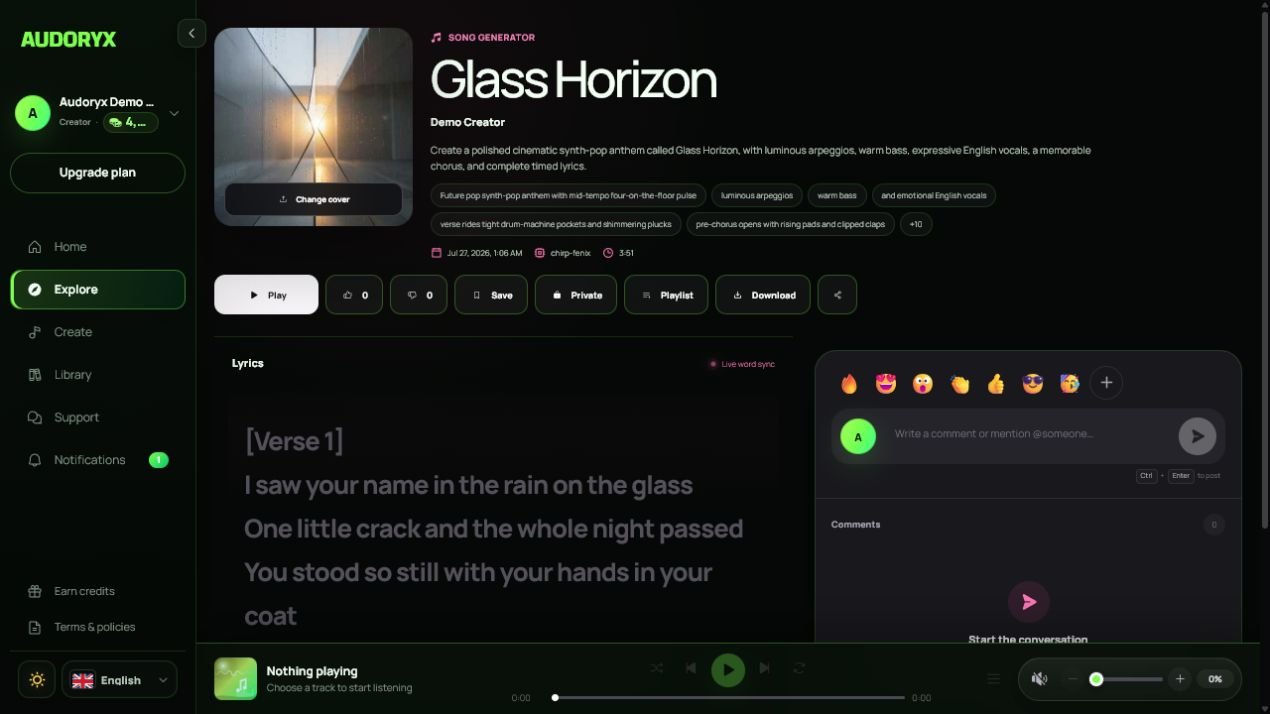
The track page combines playback, creator identity, tags, metadata, lyrics, comments, reactions, publishing, cover management, and playlist actions.
Playback and lyrics
Supported timestamped lyrics follow the current playback time. Untimed lyrics remain readable without claiming synchronization.
Comments
Write a comment or mention an available user. Comment links can reference a playback time. Guests are asked to register or sign in.
Cover
Upload approved artwork or use an authorized cover-generation feature where enabled. Provider-specific default covers remain scoped to their intended models.
Visibility
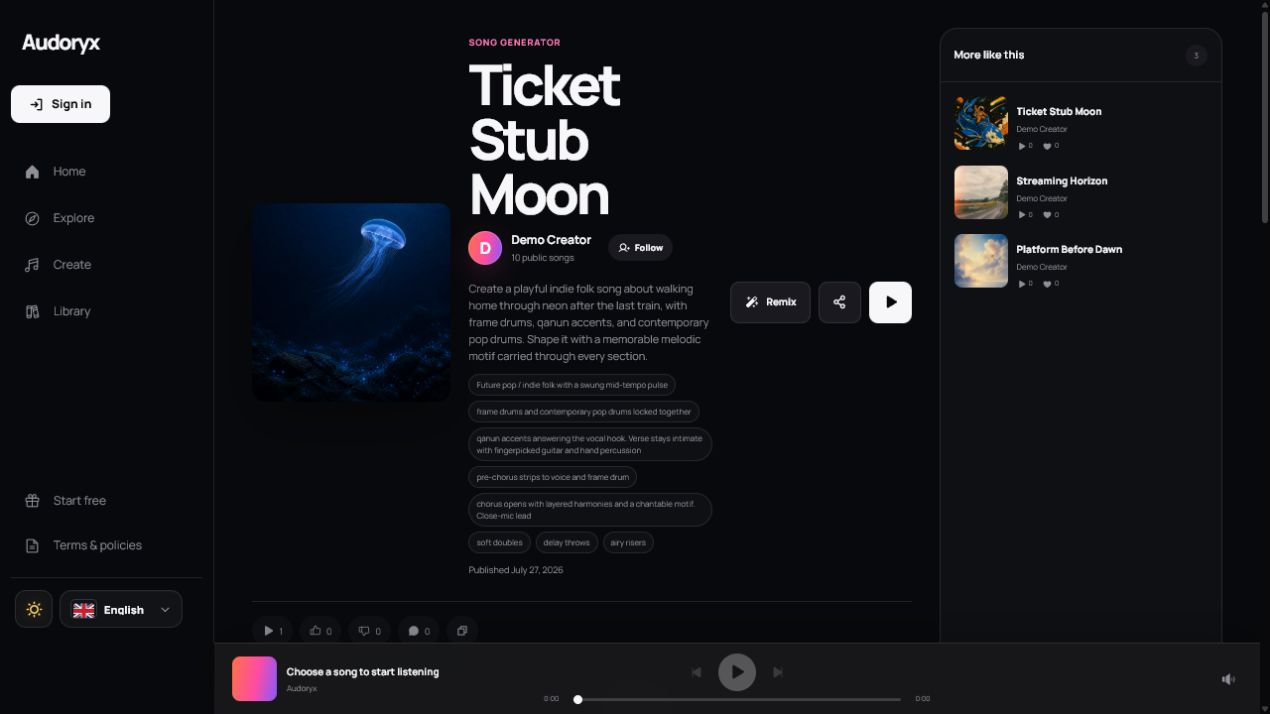
Private tracks remain owner-authorized. Public visibility creates a shareable song URL and allows guest plays to be counted under playback controls.
Remix and editing actions
Available actions depend on ownership, provider, source model, operation state, and license/plan access. Audoryx does not display unsupported actions as successful merely because a menu exists.
| Action | Purpose |
|---|---|
| Cover / Remix | Create a new interpretation while retaining an auditable relationship to the source. |
| Extend | Continue a compatible track from a supported point or provider workflow. |
| Reuse prompt | Load eligible source direction into a new creation form for review. |
| Reverse / Adjust speed | Create a derived transformation where the selected workflow exposes it. |
| Replace section | Regenerate a bounded compatible section without presenting it as an in-place edit of the original provider asset. |
| Stems / WAV | Request compatible provider exports when the account and model support them. |
Playlists, publishing, and sharing
- Create a playlist, add a descriptive name, and choose visibility deliberately.
- Add only tracks you are allowed to organize and display.
- Upload or remove the playlist cover from the playlist controls.
- Before publishing a track, review lyrics, artwork, creator name, tags, rights, and public comments.
- Use Share to copy the canonical public song link, not an expiring private media URL.
- Unpublish or remove content promptly when rights, safety, or policy requires it.
Explore and public pages
Guests may open the public Explore surface and published song pages. Attempting to comment, like, create, open a private library, or perform another account action opens the authentication request with sign-in and registration choices.
- Public plays are recorded through the controlled playback endpoint, not by page view alone.
- Like, comment, follow, remix, save, and report actions require the appropriate authenticated permission.
- Comments opened from a category or playlist can focus the track page's comment field.
- Public profile and song URLs must never reveal private workspaces, provider payloads, or storage paths.
Billing, referrals, support, and notifications
The billing catalog shows plans and hosted gateway checkout options available to the installation. Subscription activation follows a verified webhook, not the browser return page.
- Use Earn Credits to copy your unique invite link and review recorded rewards.
- Use Support for product/account conversations without sending secrets or unrequested private audio.
- Open Notifications to review generation, account, support, and administrator messages; mark them read deliberately.
- Use account settings to update profile, password, locale, appearance, and two-factor state.
- Account deletion is irreversible and starts cleanup of user-owned creative data; external provider and backup retention follow separate policies.